Двухфакторная аутентификация, или 2FA, — это дополнительная защита аккаунта. Для подтверждения важных действий используется одноразовый код из приложения Google Authenticator.
Даже если пароль попадёт к другому человеку, без кода с мобильного устройства войти в аккаунт не получится.
После подключения код из Google Authenticator понадобится при входе в аккаунт, выводе средств, смене пароля и отключении 2FA. Дополнительно настраивать подтверждение для каждого действия не нужно — 2FA защищает их одновременно.
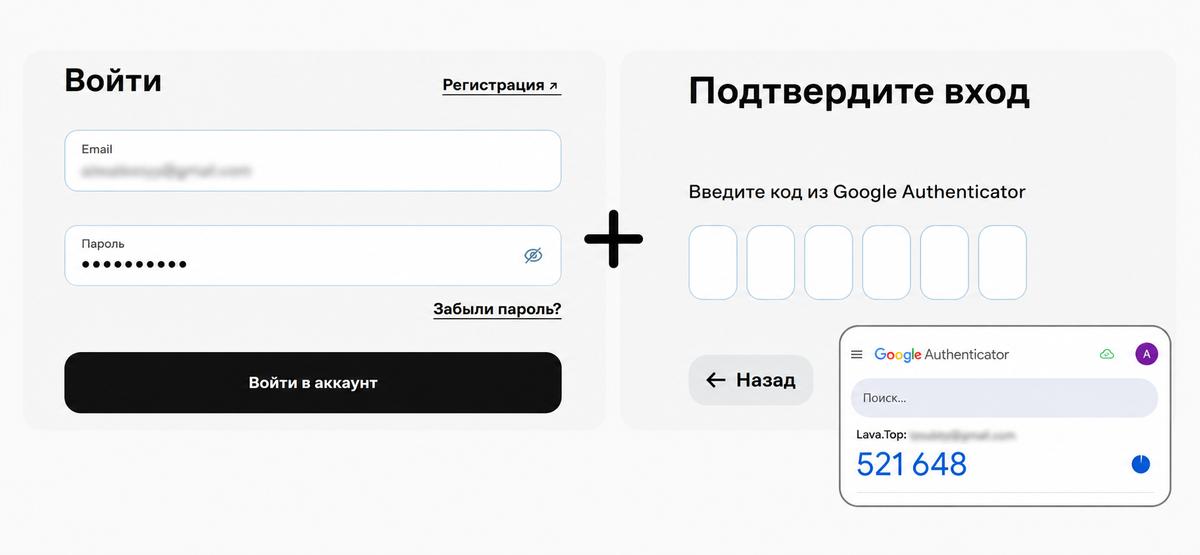
Введите почту + пароль или выберите вариант «Войти с помощью Google». После этого укажите одноразовый код из Google Authenticator.
Выберите способ вывода, укажите сумму и реквизиты. Подтвердите вывод кодом из письма, а затем введите код из мобильного приложения Google Authenticator — на это будет 10 минут.
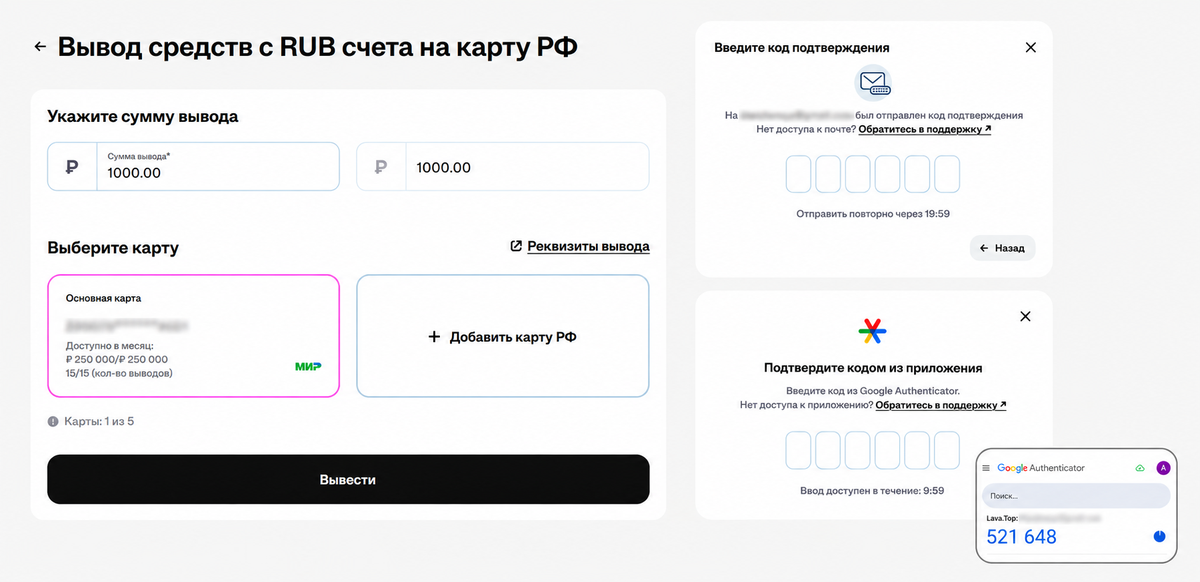
На ввод кода есть пять попыток. Если все они окажутся неверными, вывод средств в целях безопасности будет недоступен 30 минут. После этого можно попробовать снова.
Код из Google Authenticator также понадобится при смене пароля и отключении 2FA.
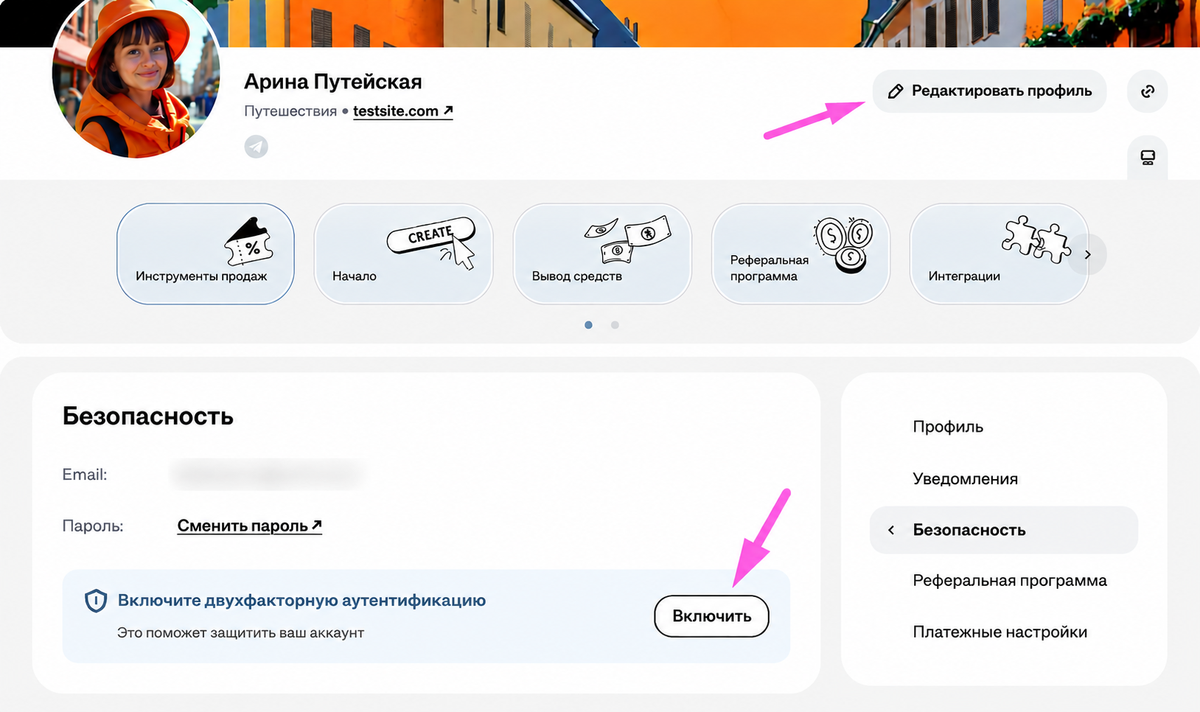
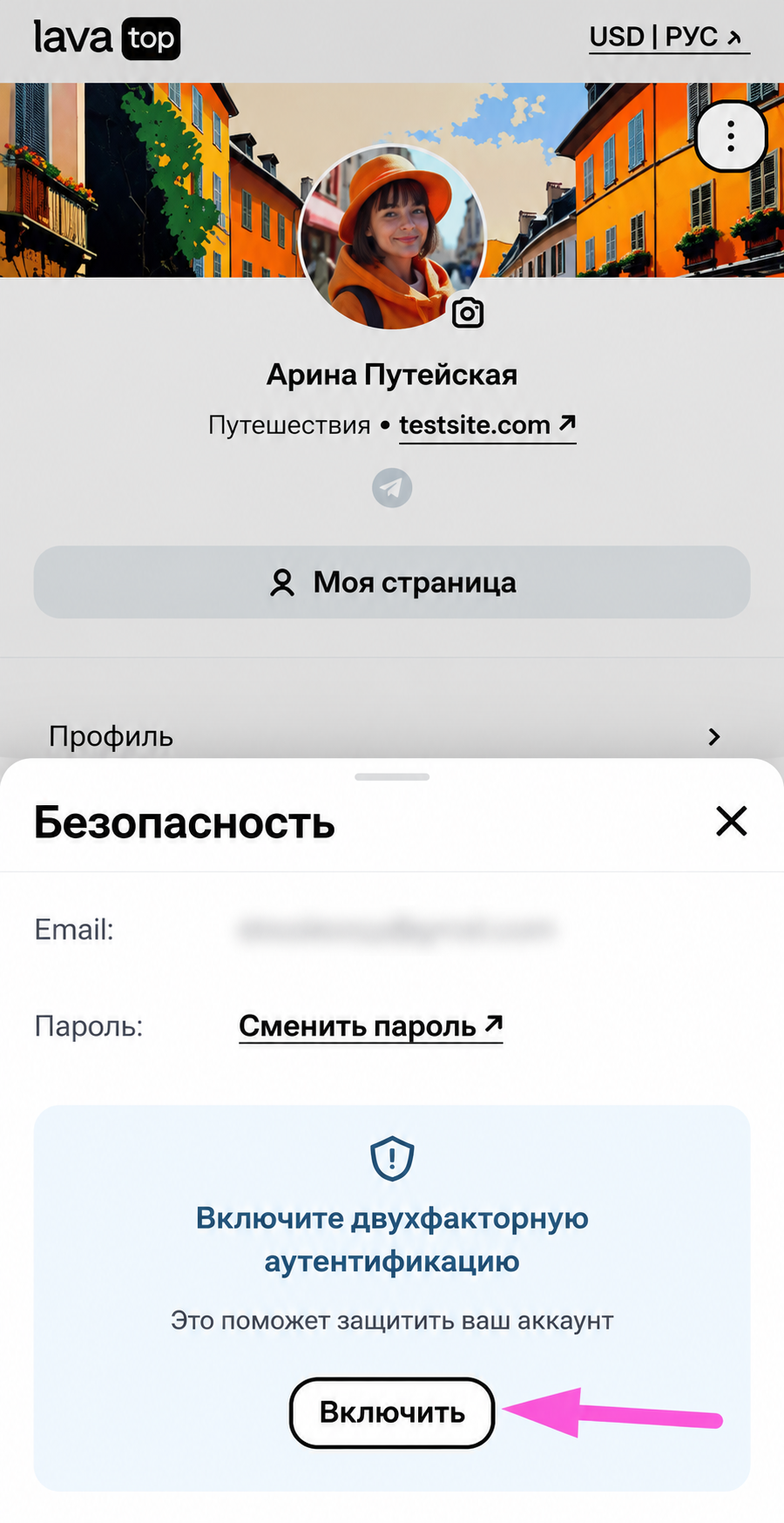
1. Перейдите в «Моя страница» → «Редактировать профиль» → «Безопасность».
2. Нажмите «Включить».
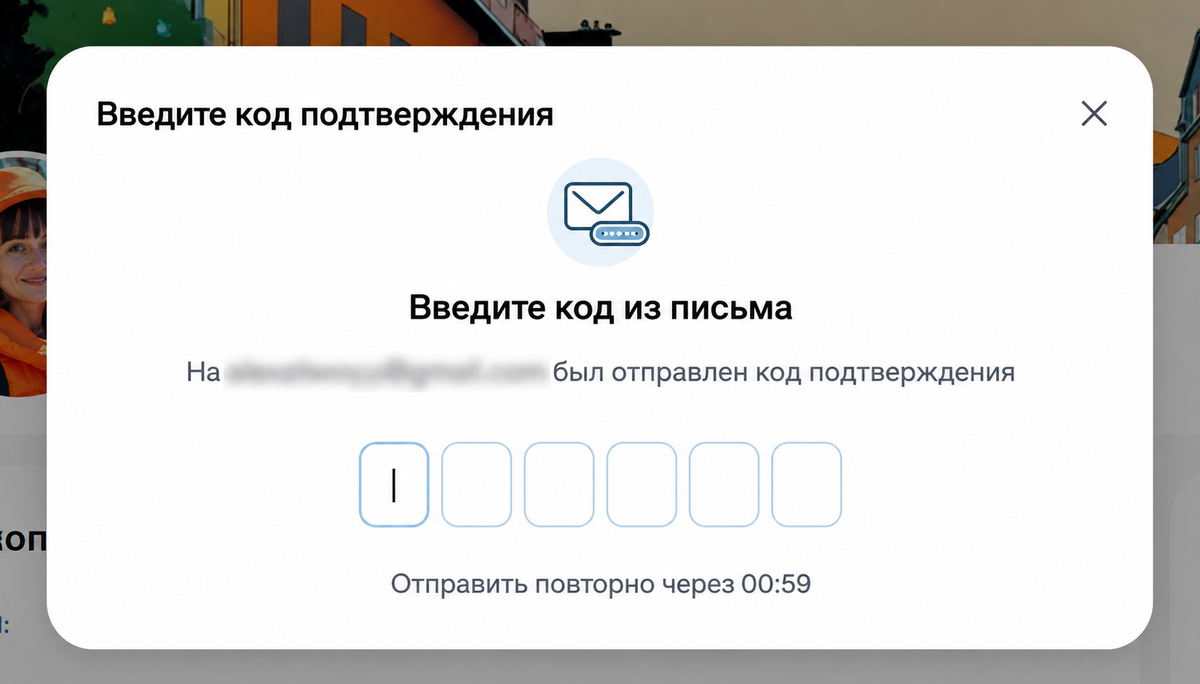
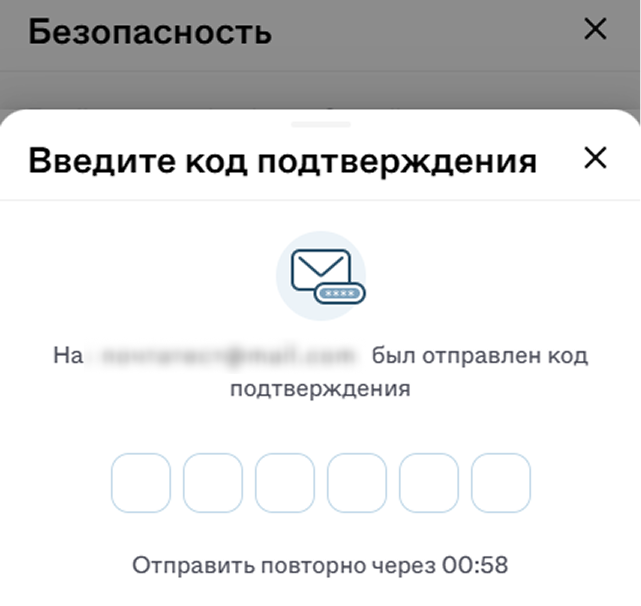
3. Введите код из письма, которое придёт на почту.
4. Откройте приложение Google Authenticator на мобильном устройстве и нажмите «Добавить код» (или на «+» внизу).
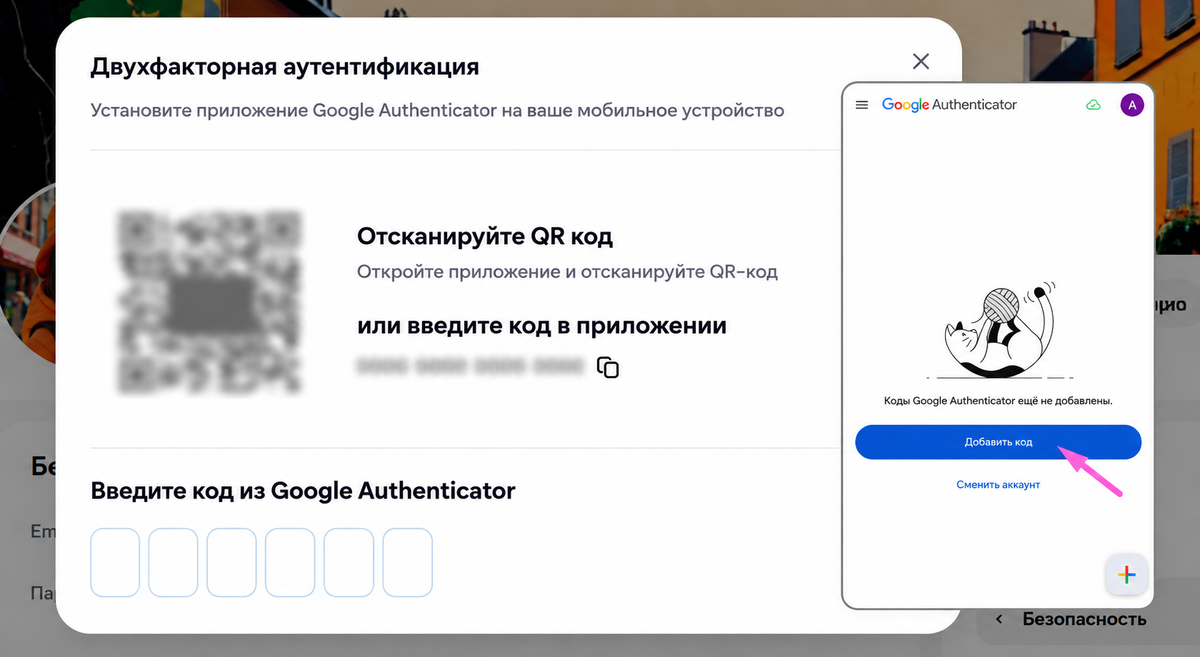
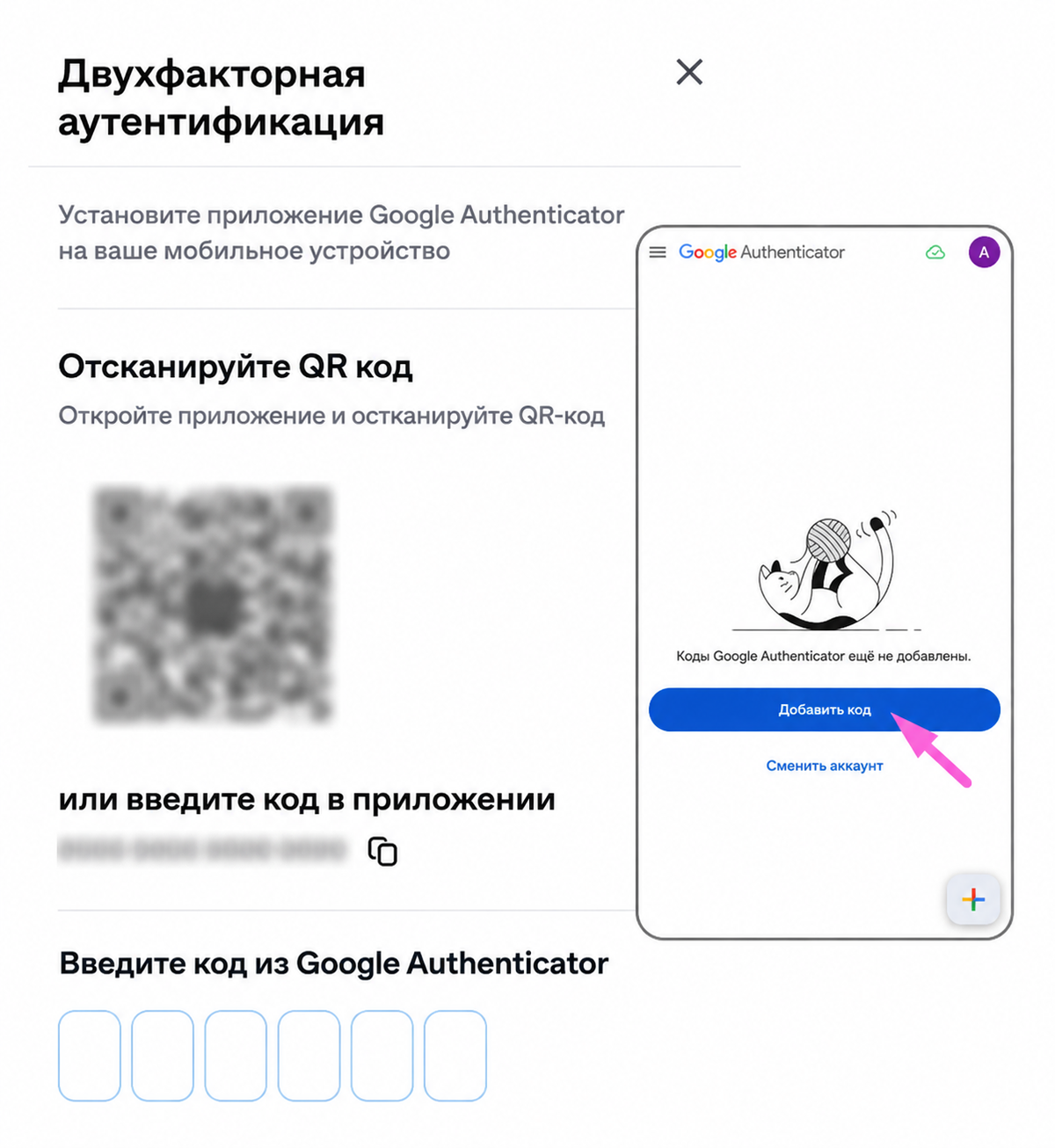
5. Отсканируйте QR-код или введите указанный на экране код вручную.
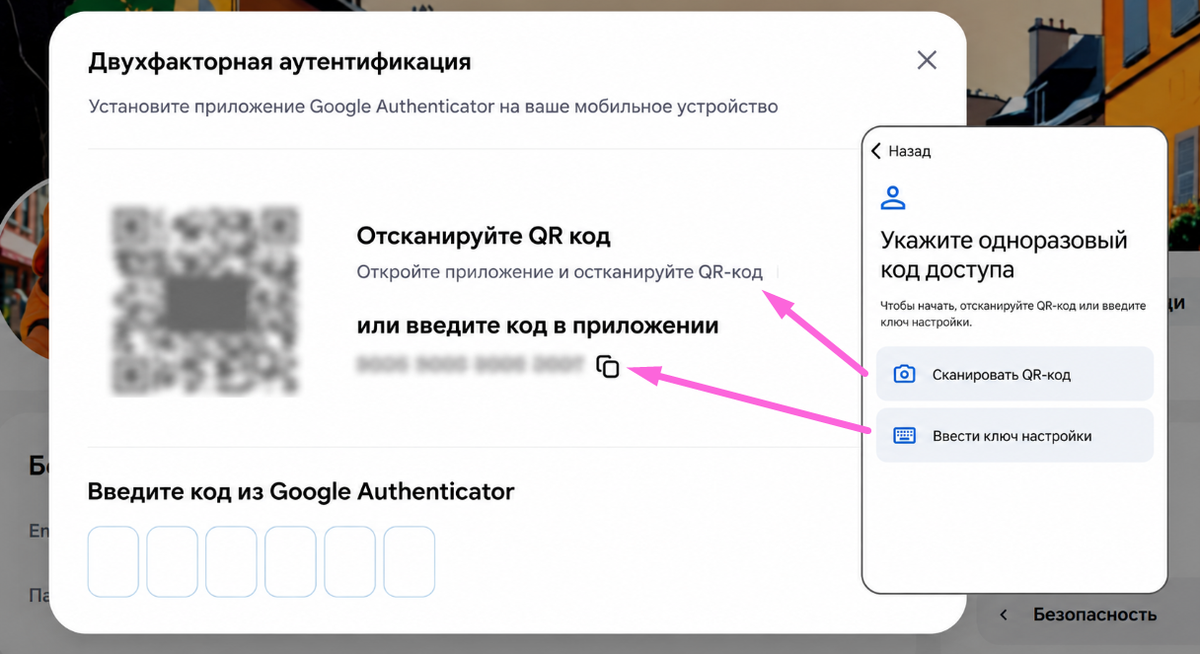
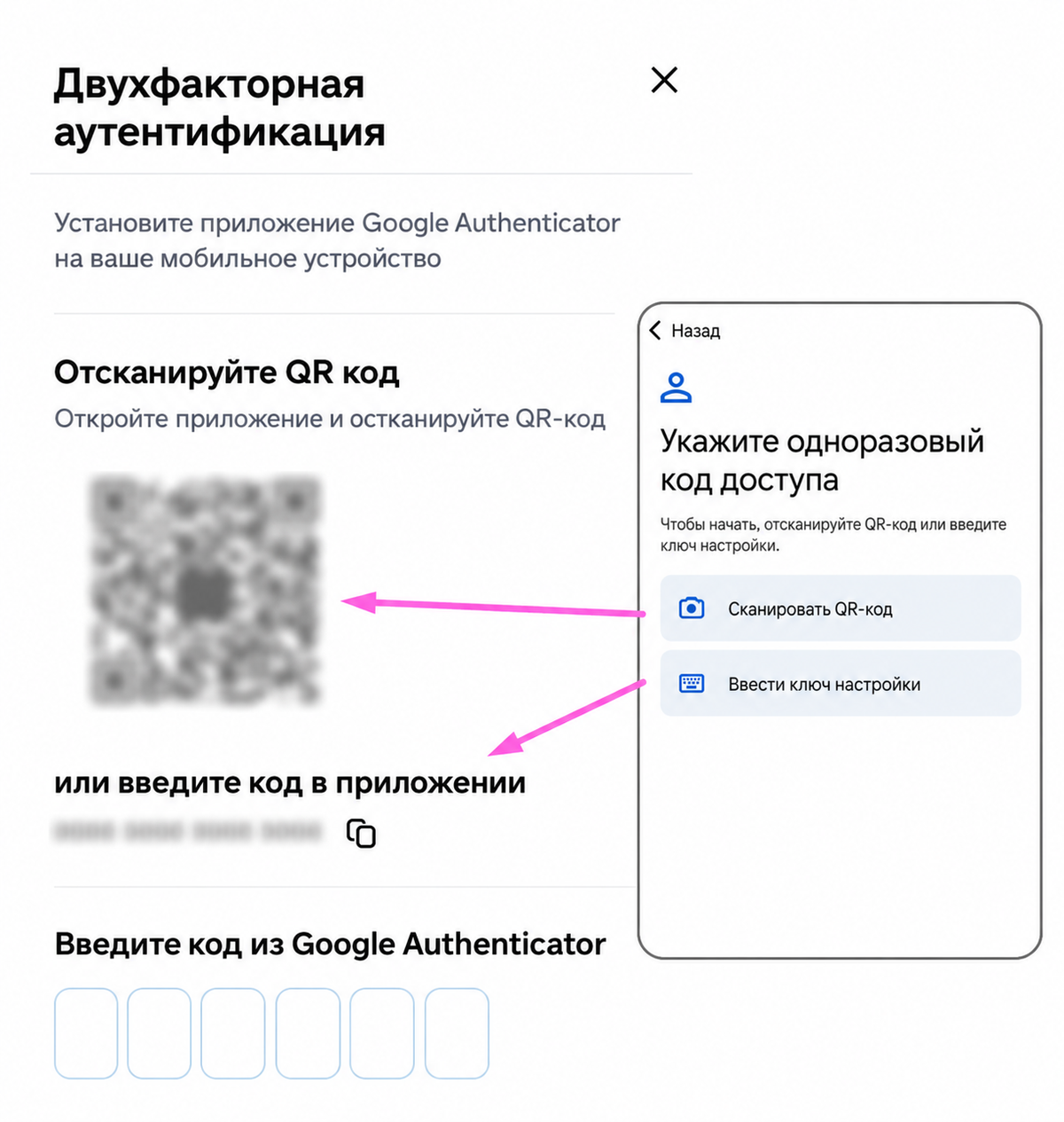
6. После подключения в общем списке Google Authenticator появится код. Он будет называться «Lava.Top: *почта аккаунта*» и меняться каждые 30 секунд.
Вставьте его в поле ввода на lava.top, чтобы подтвердить подключение.
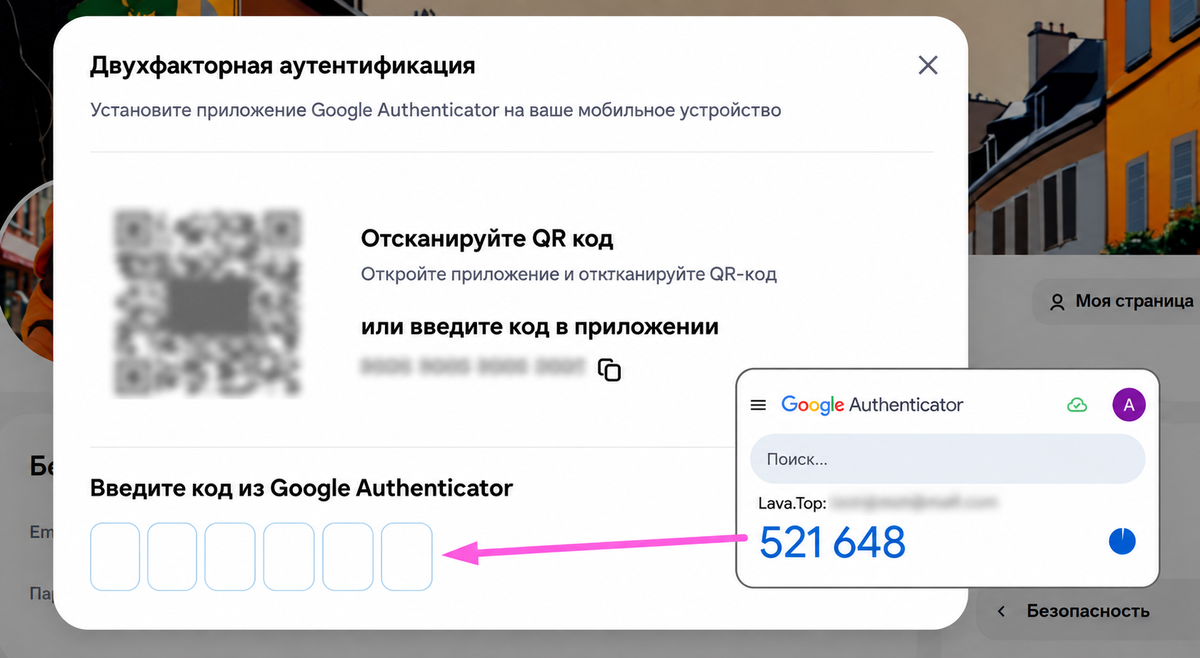
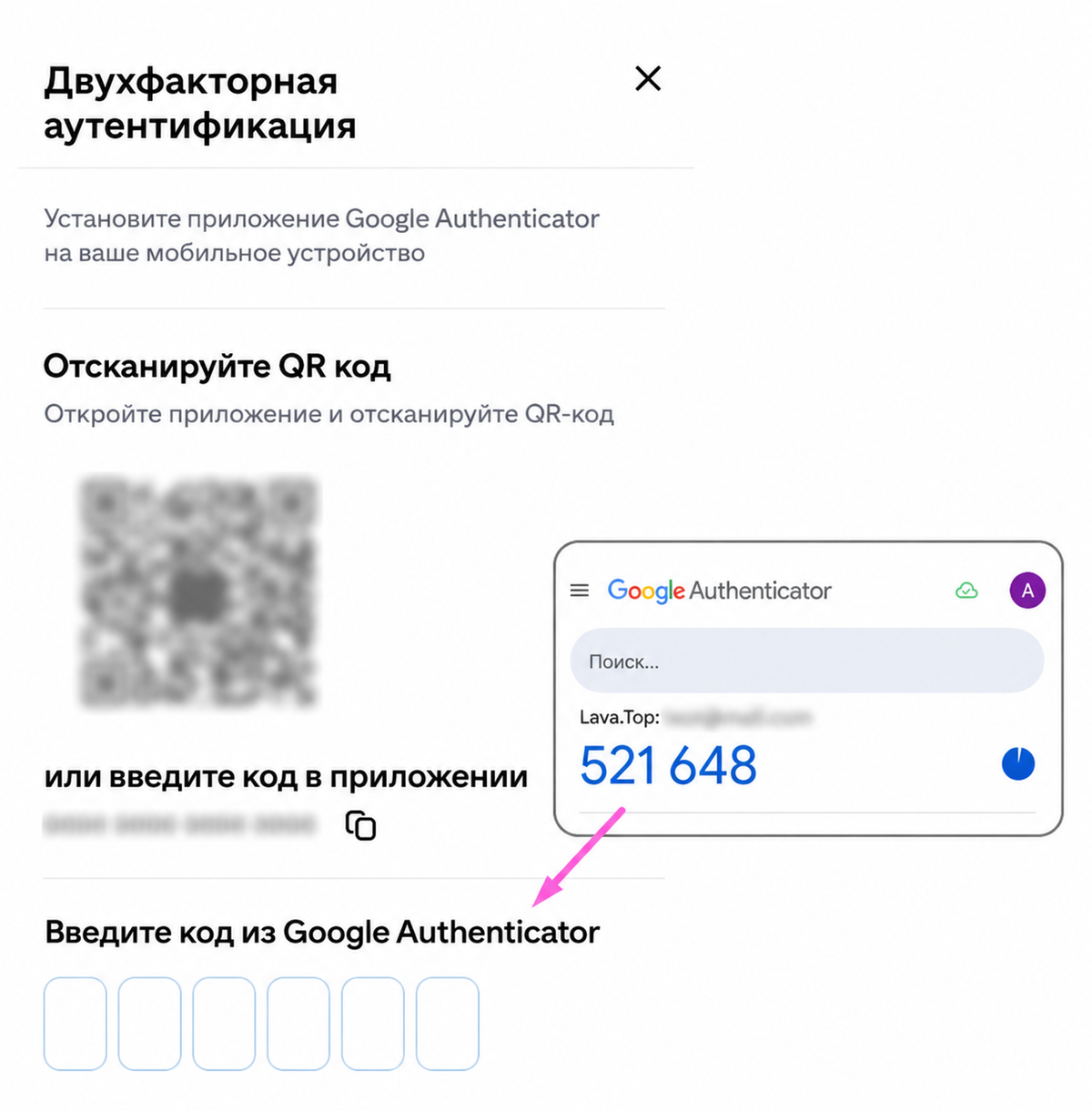
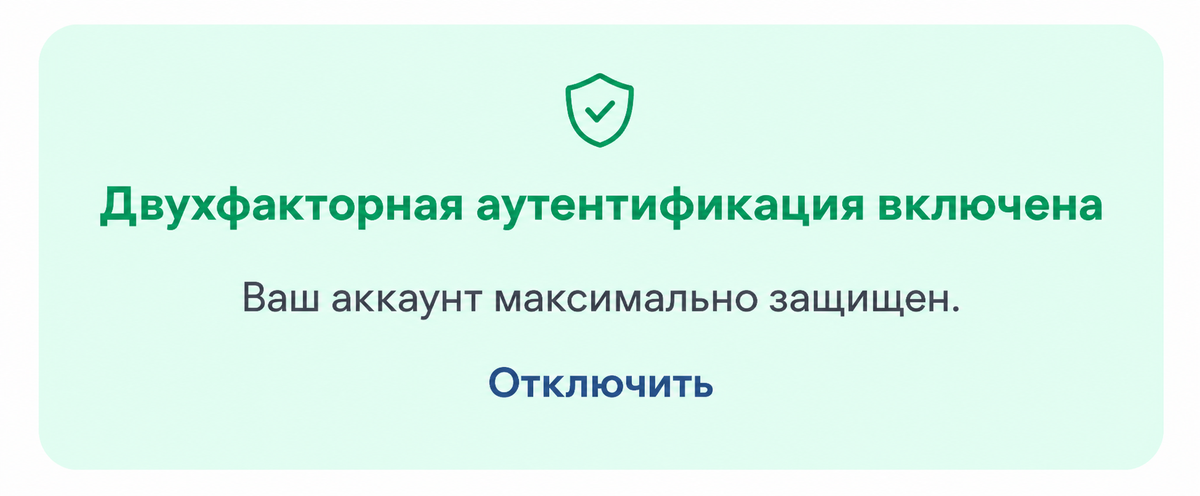
Готово! Двухфакторная аутентификация включена.
Теперь код из Google Authenticator понадобится при каждом входе в личный кабинет и при выводе средств.
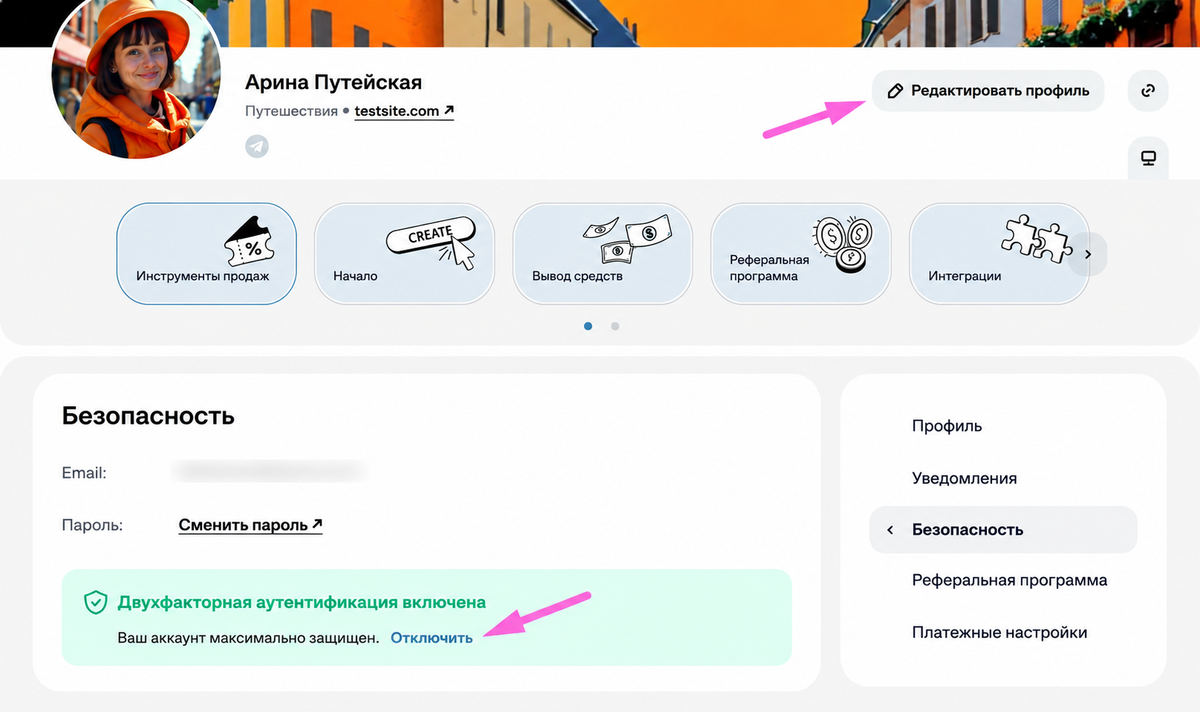
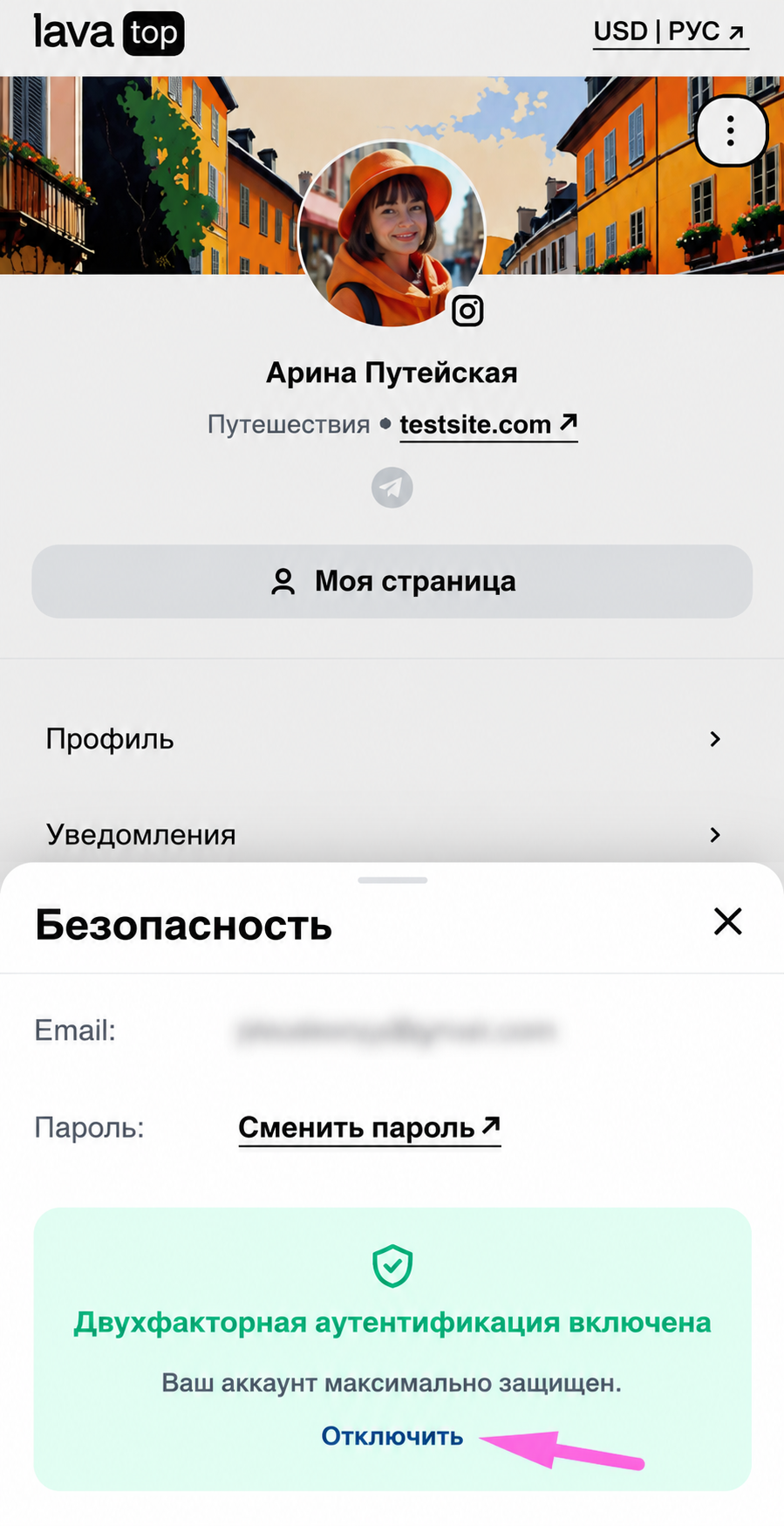
1. Перейдите в «Моя страница» → «Редактировать профиль» → «Безопасность».
2. Нажмите «Отключить».
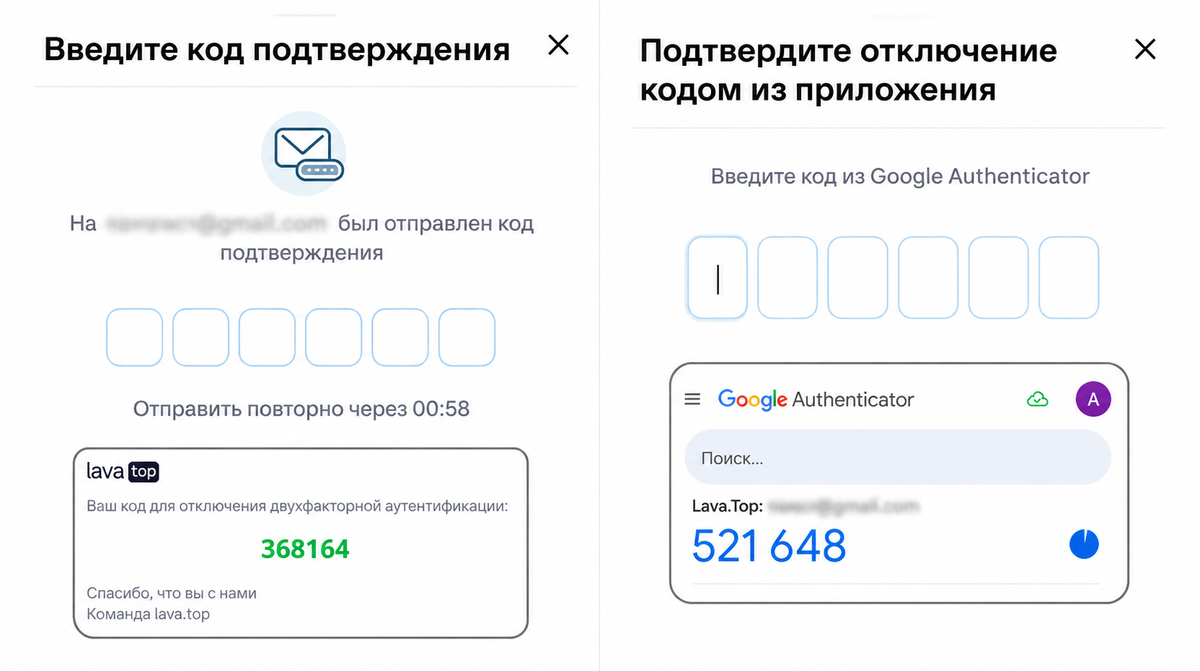
3. Введите код из письма, которое придёт на почту. А затем — код из приложения Google Authenticator.
Готово! Двухфакторная аутентификация отключена.
Проверьте, что:
- на телефоне включено автоматическое определение даты и времени;
- вводите код сразу после его обновления — новый код каждые 30 секунд;
- в Google Authenticator выбран код именно для аккаунта lava.top.
Если код по-прежнему не подходит или нет доступа к Google Authenticator, напишите в поддержку. Поможем разобраться 🙌