Чтобы продавать один и тот же контент по разным ценам, создайте продукт без фиксированной цены и продавайте его через API.
Такой продукт нельзя купить напрямую на платформе — только через API. Если нужна обычная продажа с фиксированной ценой на самой платформе, не включайте этот режим.
- Вы продаёте свой контент через разные каналы (сайт, лендинг или Telegram-бот) и хотите гибко управлять ценой без изменения продукта на платформе.
- Вы продаёте одно и то же по разным ценам в зависимости от канала или клиента.
- Не хотите каждый раз заходить в интерфейс, чтобы изменить цену.
1. Нажмите «Создать» и выберите «Цифровой продукт», «Консультацию» или «Курс».
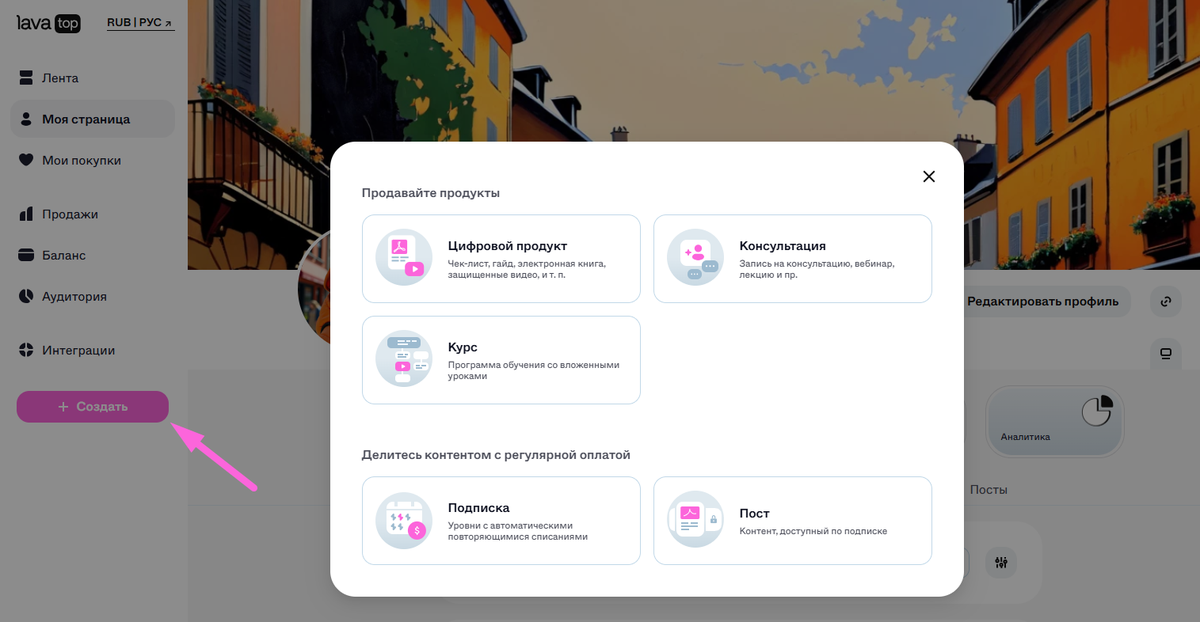
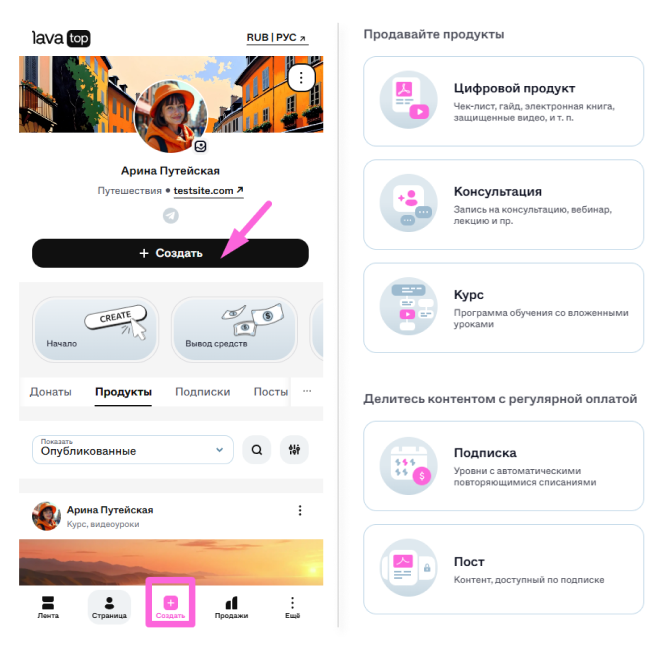
2. Заполните всю информацию как обычно: название, описание, обложку, контент. Подробнее о создании контента здесь.
3. В блоке стоимости найдите переключатель «Цена по запросу через API».
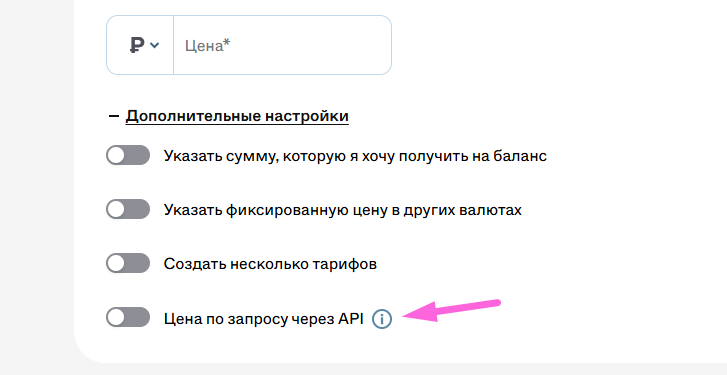
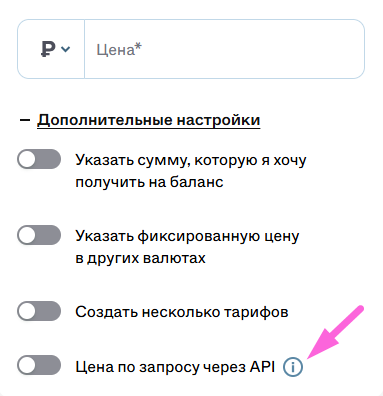
4. Включите его → поля с ценой и тарифами скроются.
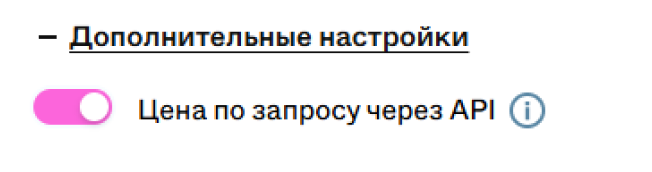
5. Нажмите «Сохранить» — продукт опубликован.
- проходит обычную модерацию,
- доступен на платформе только по ссылке — не виден в профиле для клиентов,
- продаётся только через API,
- на его странице нет кнопки «Купить» — вместо цены написано «Цена по запросу».
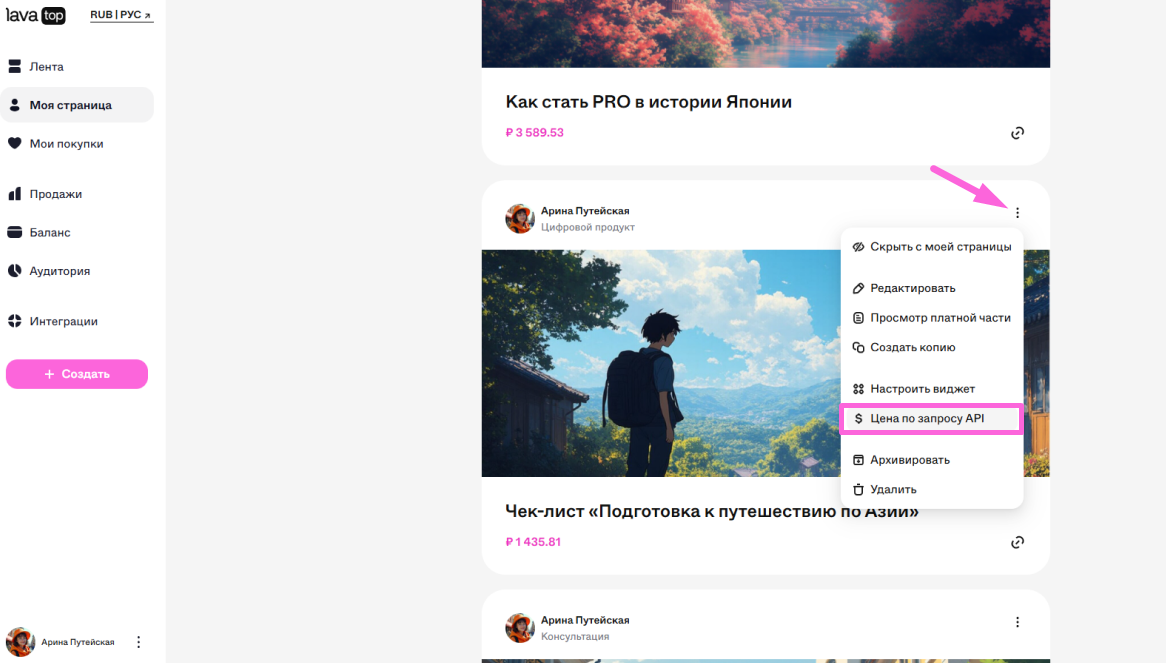
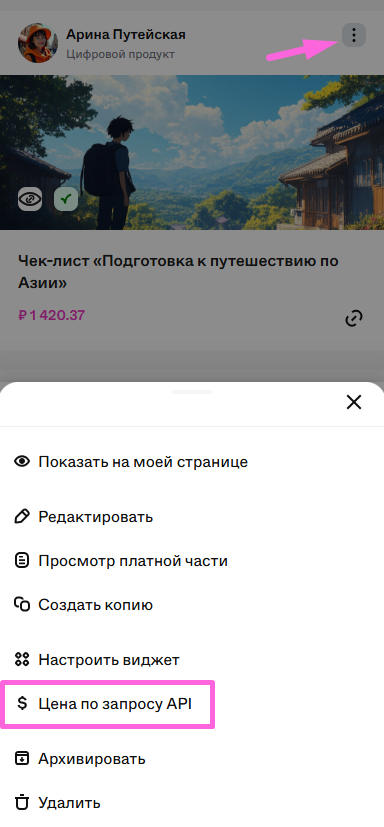
1. Найдите нужный продукт в своём аккаунте в разделе «Моя страница».
2. Откройте меню действий (три точки).
3. Выберите «Цена по запросу API»
4. Подтвердите действие.
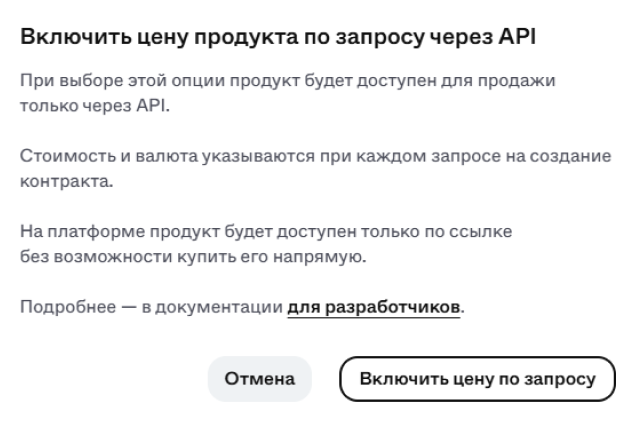
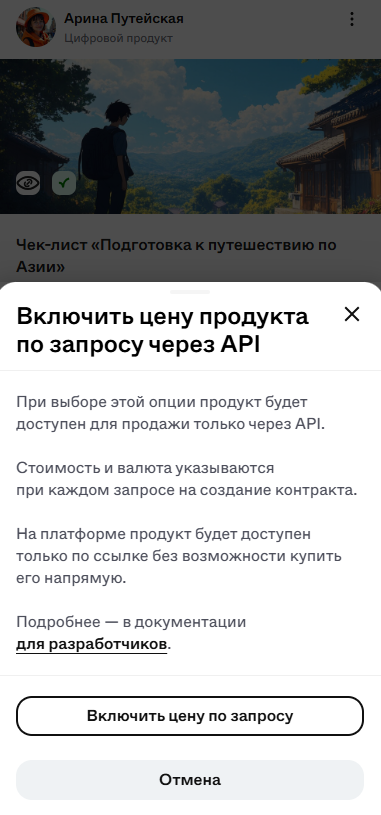
Готово! Продукт переведён в новый режим, его не нужно пересоздавать.
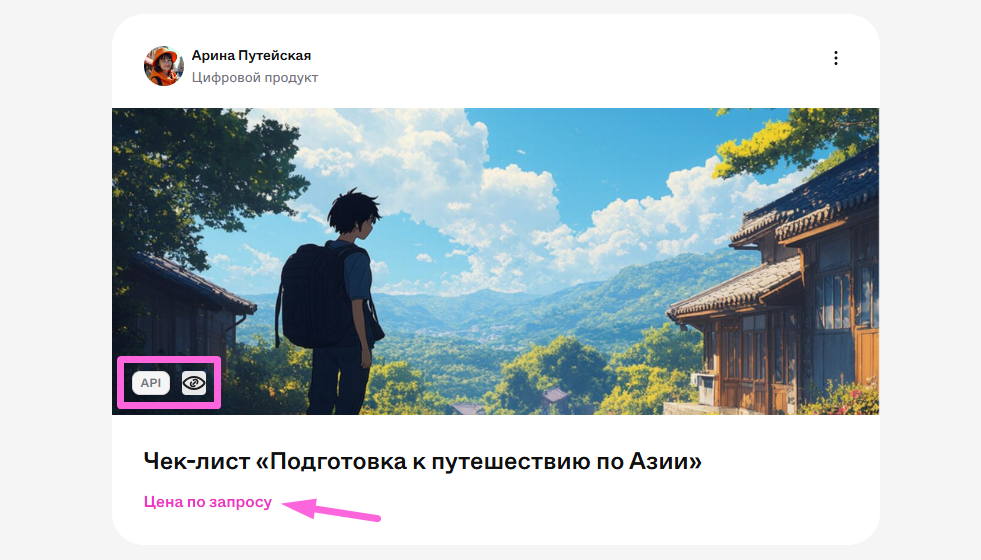

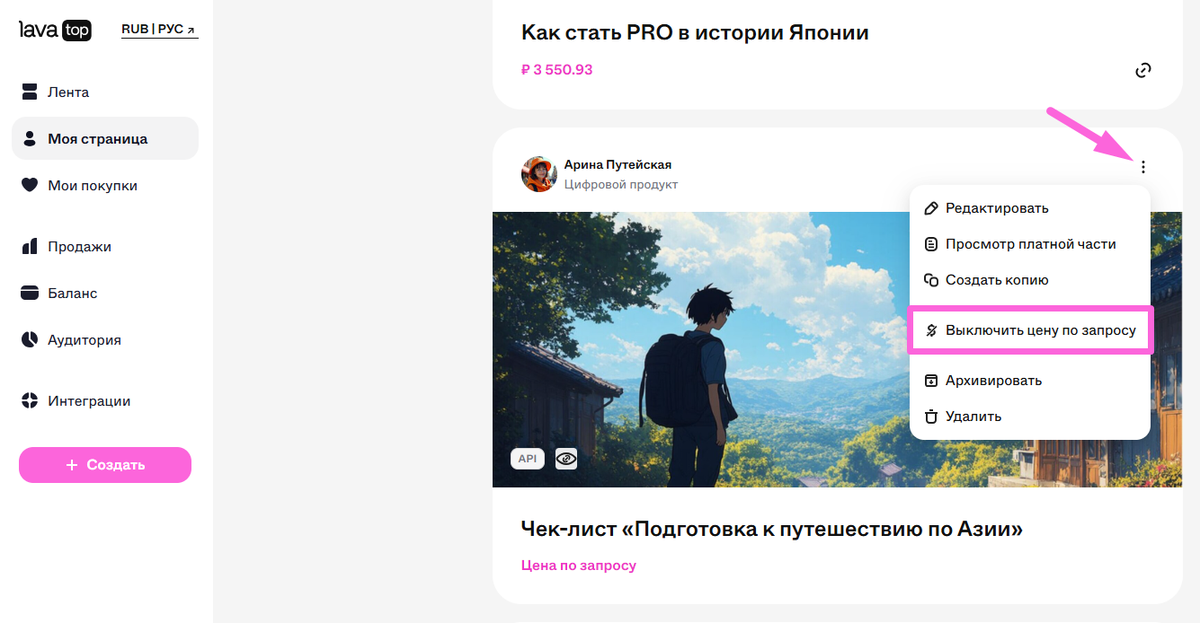
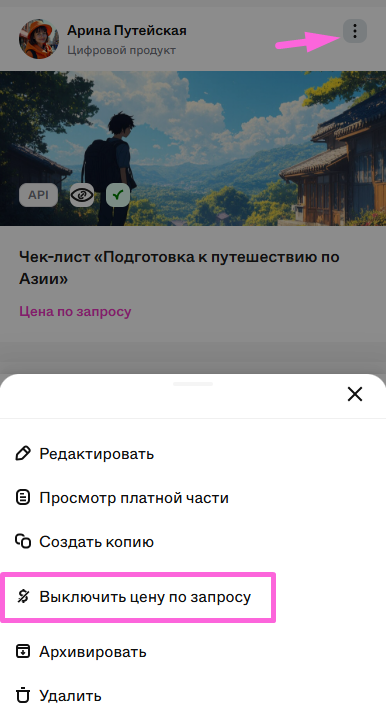
1. Найдите нужный продукт и нажмите на три точки.
2. В меню действий выберите «Выключить цену по запросу».
3. Заполните поле со стоимостью.
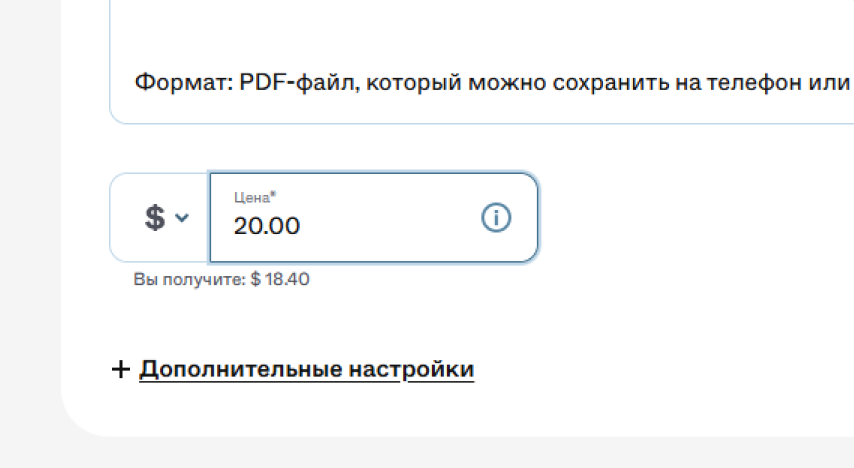
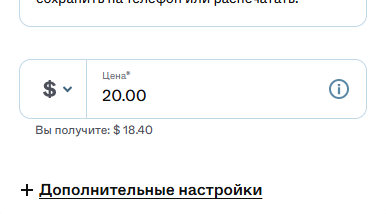
4. Сохраните изменения.
Готово! Продукт снова доступен для обычной продажи на платформе.
Для создания покупки используется метод POST/api/v3/invoice.
В запросе нужно передать:
- offerId — ID контента.
- email — почта клиента.
- currency — валюта (RUB, USD, EUR).
- amount — сумма, которую будет оплачивать клиент.
Параметр amount становится обязательным именно для продуктов без фиксированной цены — вы указываете её прямо в запросе.
По умолчанию метод GET/api/v2/products возвращает только продукты, видимые в для всех пользователей. Если ваш продукт создан в режиме «Цена по запросу через API», он скрыт из общего доступа.
Чтобы получить такой продукт в ответе, добавьте параметр feedVisibility со значением ALL или ONLY_HIDDEN.
1. В продукте выбрана опция «Цена по запросу через API», но в запросе не передано значение amount, то есть, не указана цена к оплате:
2. Сумма в поле amount ниже или выше допустимых лимитов стоимости:
Минимальная цена — 50₽, 5€ или 5$, а максимальная — 1 000 000₽, 10 000€ или 10 000$.
3. В «Платежных настройках» аккаунта выключена валюта, которая передана в запросе — сперва нужно включить валюту для приема платежей, а после еще раз отправить запрос. О настройках — здесь.
Подробнее про настройку интеграции — на портале разработчика.